

Here's the honest answer most guides skip: the built-in batch rename tools on Windows, Mac, Android, and iPhone don't actually give your images different names. They give every file the same base name plus a sequential number, like image-1.jpg, image-2.jpg, image-3.jpg. To give each image a genuinely different name, you have three real options: rename them one at a time, build a rename list with a spreadsheet or script, or let AI read each image and write a unique descriptive name automatically.
This is the exact frustration behind one of the most-asked questions in Windows, Mac, and Adobe forums. As one Adobe user put it, every batch renamer "relies on all images having the same image name but different sequence, e.g. garden-1.jpeg, garden-2.jpeg," when what they actually wanted was a different, meaningful name for each photo.
This guide covers every method that genuinely produces different names per image, on every platform, from the manual approach to the spreadsheet trick to AI.
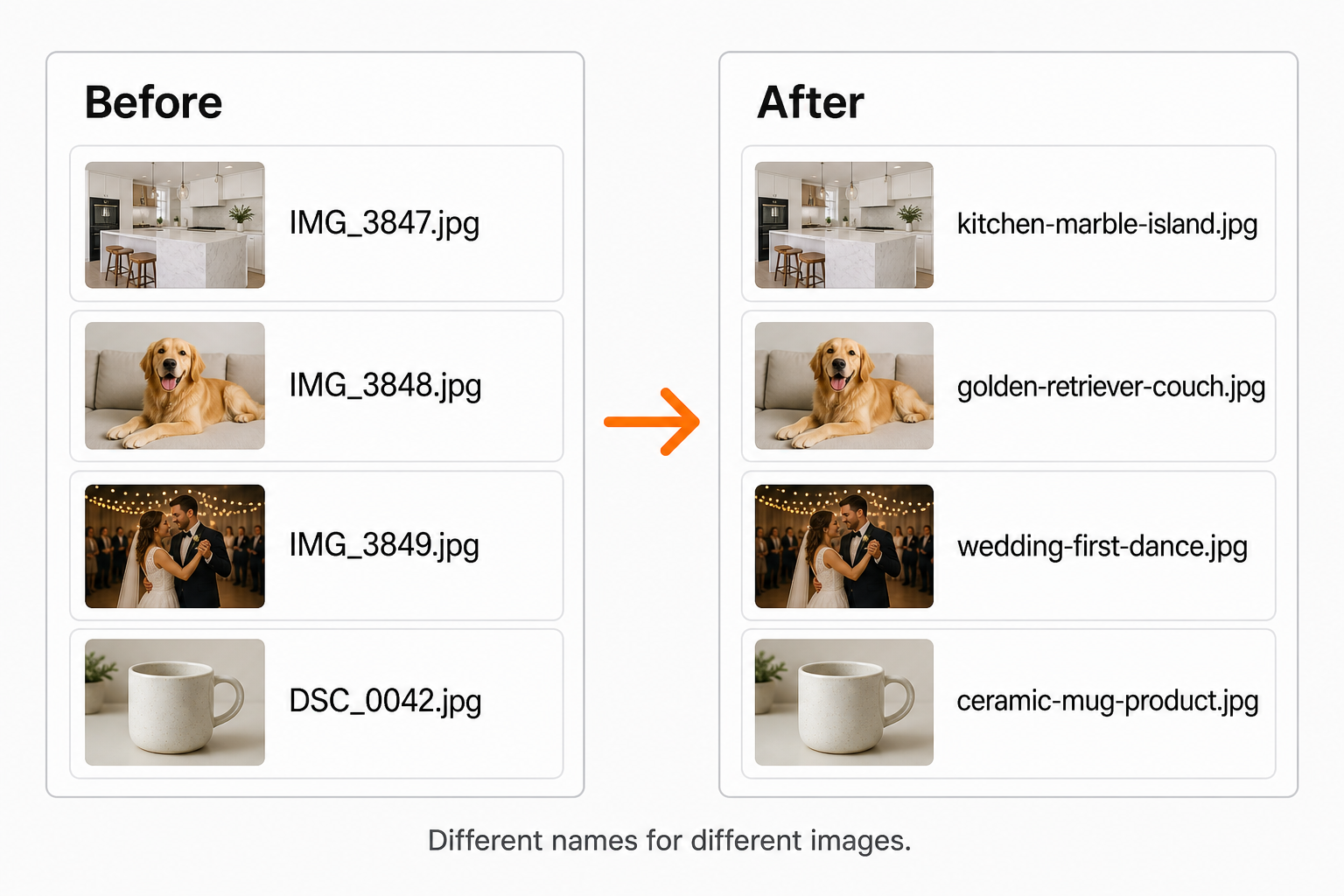
Why "with different names" is the hard part
Renaming multiple files fast is easy. Renaming them with different names is the part the built-in tools quietly can't do. When you select a batch of images and rename them in one action, here's what each tool actually produces:
| Method | What you get | Different names per image? |
|---|---|---|
| Windows File Explorer (F2) | beach (1).jpg, beach (2).jpg |
No, same base + number |
| Mac Finder batch rename | beach-1.jpg, beach-2.jpg |
No, same base + number |
| PowerRename / Bulk Rename Utility | Find-and-replace patterns + counters | Only if a rule matches each file |
| Rename one at a time | Exactly the names you type | Yes, but slow |
| Spreadsheet / script list | Exactly the names in your list | Yes, with setup |
| AI renamer | A unique descriptive name per image | Yes, automatically |
So the right method depends on what "different names" means for you. If you just need every file to be unique (a counter is enough), the built-in tools are fine. If each image needs a name that describes that specific image, you need the manual, list-based, or AI approach below.
How to rename multiple images with different names on Windows
The quick way (same name + number)
If a numbered sequence is all you need:
- Select all the images in File Explorer (click the first, Shift-click the last, or Ctrl+A).
- Press F2 (or right-click and choose Rename).
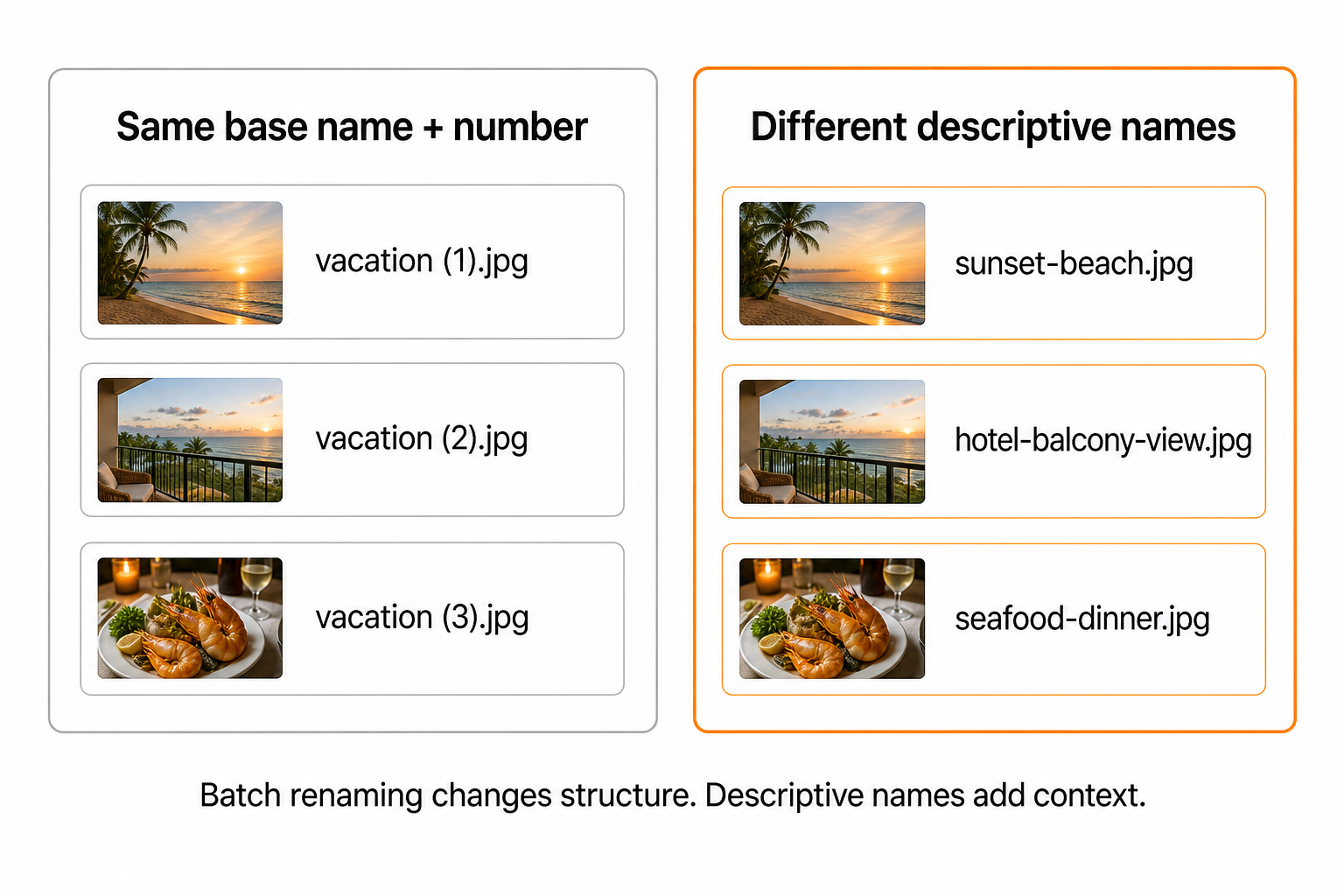
- Type one name and press Enter. Windows names them
vacation (1).jpg,vacation (2).jpg, and so on.
Fast, but every file shares the same base name. For truly different names, keep reading.
PowerRename (pattern-based different names)
Microsoft's free PowerToys includes PowerRename, which can produce different names if the differences follow a pattern:
- Install Microsoft PowerToys from the Microsoft Store and enable PowerRename.
- Select your images, right-click, and choose Rename with PowerRename.
- Use search and replace (with regular expressions, if needed) to transform existing names, and turn on the counter option to append incrementing numbers.
- Check the live preview, then click Apply. Ctrl+Z undoes the batch.
PowerRename is excellent when your files already contain the information you want to keep (dates, IDs, partial names). It can't invent a new, meaningful name for an image whose current name is IMG_3847.jpg.
The spreadsheet method (truly different names)
This is the classic "rename images in bulk using Excel" trick people search for. It lets you type a completely different name for every file and apply them all at once:
- Open the image folder in File Explorer. Click the address bar, type
cmd, and press Enter to open Command Prompt in that folder. - Run
dir /b *.jpg > filelist.txtto export the current filenames into a text file. - Open
filelist.txtand paste the names into column A of Excel (or Google Sheets). - In column B, type the new name you want for each image.
- In column C, enter this formula and fill it down:
="ren "&CHAR(34)&A1&CHAR(34)&" "&CHAR(34)&B1&CHAR(34)
This builds lines likeren "IMG_3847.jpg" "kitchen-marble-island.jpg". The quotes (CHAR(34)) keep names with spaces working. - Copy column C, paste it into a new file in Notepad, and save it as
rename.bat(set "Save as type" to All Files) inside the image folder. - Double-click
rename.bat. Every image gets its own name in one go.
The PowerShell version (no spreadsheet)
If you'd rather skip the .bat file, save a CSV with OldName,NewName columns and run this in PowerShell from the folder:
Import-Csv names.csv | ForEach-Object { Rename-Item -LiteralPath $_.OldName -NewName $_.NewName }Both list-based methods do exactly what the forums ask for: a different, hand-chosen name per file. The catch is that you still have to write every name yourself.
How to rename multiple images with different names on Mac
Finder batch rename (same base + number)
- Select the images (click and drag, or Cmd-click each one).
- Right-click the selection and choose Rename...
- Choose Format for a base name plus a counter, Replace Text to swap part of every name, or Add Text for a shared prefix or suffix.
- Preview the example at the bottom, then click Rename. Cmd+Z undoes the whole batch.
Like Windows, Finder gives every file the same base name plus a number, not a different descriptive name each.
Terminal list method (truly different names)
For genuinely different names on Mac, build a two-column list and rename from Terminal. Create a file names.txt with oldname|newname on each line, then run this in the folder:
while IFS='|' read -r old new; do mv "$old" "$new"; done < names.txtSame idea as the Windows spreadsheet method: you decide each name, the script applies them all at once.
How to rename multiple images with different names on Android
Android's Files by Google doesn't offer a true batch rename with different names. Google's own support guidance is to rename each photo individually:
- Open Files by Google and browse to DCIM/Camera or the Images category.
- Tap the three-dot menu next to a photo and choose Rename.
- Type a unique name and tap OK. Keep the
.jpgor.pngextension, or the file may stop opening. - Repeat for each photo.
It works, but it's the manual route. For a folder of dozens or hundreds, move the photos to a computer or use the AI method below.
How to rename multiple images with different names on iPhone
The Photos app can't rename files at all, so you work in the Files app:
- In Photos, select the images, tap Share, then Save to Files and pick a folder.
- Open Files. To give each image its own name, long-press a file, tap Rename, and type a unique name. Repeat per image.
- To rename them as a numbered batch instead, tap the three-dot menu, choose Select, select the files, then Quick Actions > Rename. This appends sequential numbers to one base name.
Our full device-by-device walkthrough is in how to rename photos on iPhone, Android, Mac, and Windows.
The catch with every method above
Look back at the list and a pattern emerges. Every method is either fast but identical (same base name plus a number) or different but manual (you type, paste, or script every single name yourself). The spreadsheet trick is clever, but assigning 300 different names still means looking at 300 images and typing 300 names. At a minute each, that's a full workday.
That gap, different, meaningful names without the manual labor, is exactly what AI renaming solves.
How to give every image its own descriptive name automatically

Renameit looks at what's actually inside each image and writes a different, descriptive filename for every one automatically. Instead of image-1.jpg through image-300.jpg, you get a unique name per photo based on its content:
| Before | After (a different name each) |
|---|---|
IMG_3847.jpg |
kitchen-marble-island-gold-lighting.jpg |
IMG_3848.jpg |
golden-retriever-puppy-sleeping-couch.jpg |
IMG_3849.jpg |
wedding-first-dance-string-lights.jpg |
The workflow is simple: open Renameit in your browser (no install), drag in your images, and the AI suggests a clear name for each. Every suggestion is editable before you download, it can generate matching alt text in the same pass, and your images are deleted immediately after processing. You can try it free without signing up. The "rename 300 images with 300 different names" job stops being an afternoon and becomes a coffee break.
If those images are headed for a website, descriptive filenames also help search engines understand them. See why SEO-friendly file names matter.
Which method should you use?
| Your situation | Best method |
|---|---|
| A numbered sequence is fine | File Explorer F2 (Windows) or Finder Rename (Mac) |
| Names follow a pattern in the existing filenames | PowerRename or Bulk Rename Utility |
| You know each exact name and there aren't too many | Spreadsheet .bat or PowerShell/Terminal list |
| Each image needs its own descriptive name and there are a lot | AI renamer like Renameit |
| You're on a phone with a big camera roll | Move to a computer, or use Renameit in the browser |
The bottom line
"Rename multiple images at once with different names" trips people up because the obvious tools don't really do it. They give every file the same name plus a number. For truly different names you either rename one at a time, build a rename list in a spreadsheet or script, or hand the job to AI that reads each image and writes a unique descriptive name for you. Pick the manual route for a handful of files; use AI when each of many images needs its own meaningful name.
Frequently asked questions
How do I rename multiple files at once with different names?
Built-in batch rename (Windows F2, Mac Finder) only gives every file the same base name plus a number, like image-1 and image-2. For genuinely different names, rename each file individually, build a rename list in a spreadsheet that generates 'ren' commands you save as a .bat file (or a PowerShell/Terminal script), or use an AI renamer that writes a unique descriptive name for each image automatically.
Can I rename multiple images with different names in Windows?
Yes, but not with plain File Explorer, which only appends numbers to one base name. Use PowerToys PowerRename for pattern-based renaming, or the spreadsheet method: export the filenames with 'dir /b > filelist.txt', list the new names in Excel, build 'ren "old" "new"' lines with a formula, save them as a .bat file, and run it. For different descriptive names without typing each one, use an AI tool like Renameit.
How do I rename images in bulk using Excel?
Open Command Prompt in the image folder and run 'dir /b > filelist.txt' to list the current filenames. Paste them into Excel column A, type your new names in column B, then in column C use the formula ="ren "&CHAR(34)&A1&CHAR(34)&" "&CHAR(34)&B1&CHAR(34) and fill it down. Copy column C into Notepad, save it as rename.bat in the folder, and double-click it to apply every different name at once.
How do I rename multiple photos with different names on Android or iPhone?
Neither Google Photos nor Apple Photos lets you rename files. On Android, use Files by Google and rename each photo individually via the three-dot menu (Google's own guidance), keeping the file extension. On iPhone, save the photos to the Files app, then long-press each one and choose Rename. For many photos, it's faster to move them to a computer or use a browser-based AI renamer.
Is there a way to rename multiple files at once with different names instead of just numbers?
Yes. The two reliable options are a rename list (a spreadsheet or CSV that pairs each old name with a new name, applied via a .bat file or PowerShell/Terminal) or an AI renamer that analyzes each image and assigns a unique descriptive filename. Standard batch tools can only reuse one base name with an incrementing counter.
What's the fastest way to give each image its own descriptive name?
An AI image renamer. Tools like Renameit use vision AI to look at each photo and generate a different, descriptive filename for every one, so you skip typing names entirely. You drag in the images, review the suggested names (editable), and download. It can also generate matching alt text, and it works in the browser with no install.